Ardour
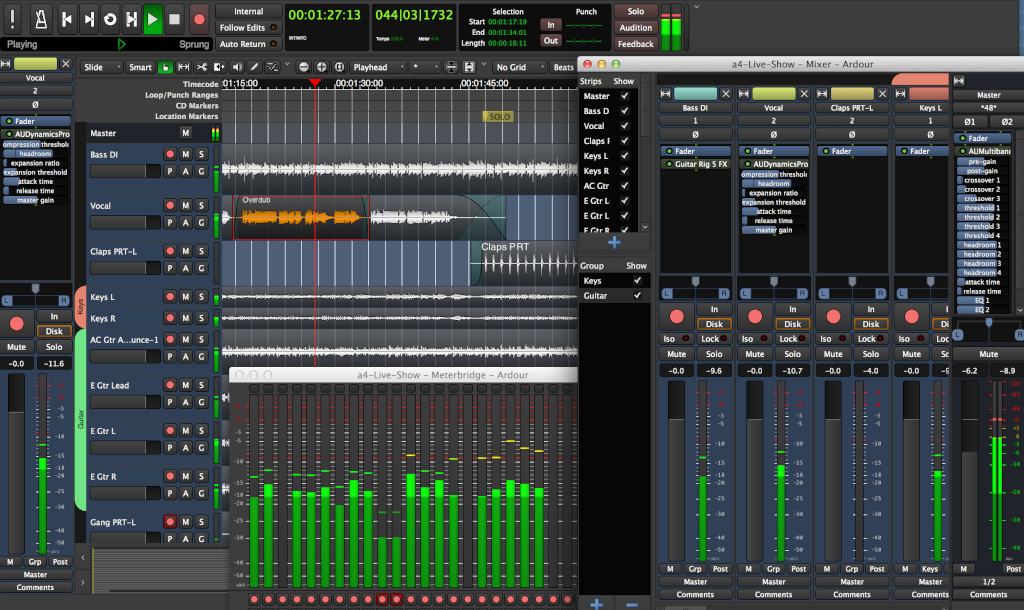
Ardour is a Digital
Audio Workstation originally developed by Paul Davis.
There is a veritable army of other contributors but
mostly Paul Davis and Robin Gareus at present. If you
are interested, the list of developers and
contributors is on their Ardour
Development page. If you look far enough down
you'll even find my name - who knew? Ardour is the
basis for Harrison
Mixbus which I'll touch on later.
So, what do I use Ardour for? I record almost all of our gigs (when we run our own sound) in Ardour on the Raspberry Pi. If you load Raspbian, which is a Debian Linux operating system (OS) for the Raspberry Pi, you can install Ardour on the Raspberry Pi. Note that the OS and Ardour are free, you just have to buy a Raspberry Pi. The Raspberry Pi 4 is fairly inexpensive and it's really all you need to record your gigs.
First, you need to set up a template for recording your tracks. The first time you start Ardour it will ask where you want to record to. I added a USB 3 card reader to the Raspberry pi and have a 256GB SD card in it which is where I store my recordings. That makes life a lot easier because, at the end of a gig, you can shut down the Pi and remove the SD card to take home to your workstation. Start Ardour (choose 48KHz for the sample rate since that is the frequency output from the XR18) and create a new session. You can name the session anything you want (I just used XR18 as the name). Once you are in the session, right-click on the track area (just below the Master track on the left). This will pop up the Add track/bus/VCA dialog. In the dialog add 16 mono tracks. These will be named Audio1 through Audio16. Now, you need to save this as a template (under Session->Save Template...). I named mine You can name it anything you want. From then on, all you have to do is start Ardour (it's in the Audio menu), select the template, choose a name, and start a new session. From experience I can tell you that you need to keep the names short because it's a PITA typing in names on a tablet or phone. Once the session starts, arm all the tracks by pressing the red record button in each track, pressing the main record button in the top left bunch of buttons, and, when the time is right, pressing the play button next to the record button. When you're finished, press the stop button then save and close.
So, you have 16 tracks of amazing music on the SD card but what do you do now. If you're used to some other DAW than Ardour or Harrison Mixbus you can mount the SD card on your workstation, navigate to the gig or set folder, then to the interchange folder, the gig or set folder (it has the same name), then to the audiofiles folder. There you will find all of the .wav files for the session. Just import them into your DAW and have a ball. If you're not already using a DAW I would suggest you either buy Harrison Mixbus or download Ardour and make a donation to them. If you're running Linux you can just install Ardour and go to town. I still recommend making a donation (which is required for Windows or Mac OS/X unless you want to try to build it from source - which I don't recommend).
Assuming you're running Harrison Mixbus or Ardour you should start Ardour (remember, 48KHz Sample Rate) then do Session->Import, import to the source list, make 16 new mono tracks, give them reasonable names (like Dr. Teeth keys, Floyd bass), left click to select a track in the source list (on the right, if it's not there go to the View tab and click on Show Editor List) then right click on a track and select Insert Selected Region. Do that for all the other tracks. When all the tracks are populated start listening to the mix. Add effects to each track as needed by right clicking in the mixer display under the Fader button (if it's not there do View->Show Editor Mixer). There are a ton of other things you can do, like adjusting the EQ or compression in the mixer. You can solo a track to get the effects the way you want them. Once all the effects are good adjust the volume for each track to get a good mix. When you are done with that you need to save the template so you don't have to do this every time you do a gig. Go to Session->Save Template... and save it. From then on, when you create a new session you can select that template so that the effects and levels are (approximately) correct before you import the tracks.
So, what do I use Ardour for? I record almost all of our gigs (when we run our own sound) in Ardour on the Raspberry Pi. If you load Raspbian, which is a Debian Linux operating system (OS) for the Raspberry Pi, you can install Ardour on the Raspberry Pi. Note that the OS and Ardour are free, you just have to buy a Raspberry Pi. The Raspberry Pi 4 is fairly inexpensive and it's really all you need to record your gigs.
First, you need to set up a template for recording your tracks. The first time you start Ardour it will ask where you want to record to. I added a USB 3 card reader to the Raspberry pi and have a 256GB SD card in it which is where I store my recordings. That makes life a lot easier because, at the end of a gig, you can shut down the Pi and remove the SD card to take home to your workstation. Start Ardour (choose 48KHz for the sample rate since that is the frequency output from the XR18) and create a new session. You can name the session anything you want (I just used XR18 as the name). Once you are in the session, right-click on the track area (just below the Master track on the left). This will pop up the Add track/bus/VCA dialog. In the dialog add 16 mono tracks. These will be named Audio1 through Audio16. Now, you need to save this as a template (under Session->Save Template...). I named mine You can name it anything you want. From then on, all you have to do is start Ardour (it's in the Audio menu), select the template, choose a name, and start a new session. From experience I can tell you that you need to keep the names short because it's a PITA typing in names on a tablet or phone. Once the session starts, arm all the tracks by pressing the red record button in each track, pressing the main record button in the top left bunch of buttons, and, when the time is right, pressing the play button next to the record button. When you're finished, press the stop button then save and close.
So, you have 16 tracks of amazing music on the SD card but what do you do now. If you're used to some other DAW than Ardour or Harrison Mixbus you can mount the SD card on your workstation, navigate to the gig or set folder, then to the interchange folder, the gig or set folder (it has the same name), then to the audiofiles folder. There you will find all of the .wav files for the session. Just import them into your DAW and have a ball. If you're not already using a DAW I would suggest you either buy Harrison Mixbus or download Ardour and make a donation to them. If you're running Linux you can just install Ardour and go to town. I still recommend making a donation (which is required for Windows or Mac OS/X unless you want to try to build it from source - which I don't recommend).
Assuming you're running Harrison Mixbus or Ardour you should start Ardour (remember, 48KHz Sample Rate) then do Session->Import, import to the source list, make 16 new mono tracks, give them reasonable names (like Dr. Teeth keys, Floyd bass), left click to select a track in the source list (on the right, if it's not there go to the View tab and click on Show Editor List) then right click on a track and select Insert Selected Region. Do that for all the other tracks. When all the tracks are populated start listening to the mix. Add effects to each track as needed by right clicking in the mixer display under the Fader button (if it's not there do View->Show Editor Mixer). There are a ton of other things you can do, like adjusting the EQ or compression in the mixer. You can solo a track to get the effects the way you want them. Once all the effects are good adjust the volume for each track to get a good mix. When you are done with that you need to save the template so you don't have to do this every time you do a gig. Go to Session->Save Template... and save it. From then on, when you create a new session you can select that template so that the effects and levels are (approximately) correct before you import the tracks.