Raspberry Pi-4B
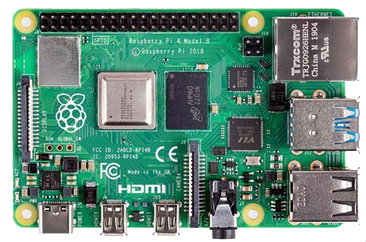
Boy, that's scary looking isn't it? Not to worry, it's
just a computer that's the size of a credit card. This
is the little beast that I use to record my band. I
got mine from CanaKit.It
looks a lot less scary in the enclosure. This is a
Raspberry Pi-4B. The latest is the Raspberry Pi-5
which is overkill for what I want to use it for. You
can get the kit with 2GB of memory and 128GB of
storage for about $150. Now, on to the fun stuff.
The first thing you need to do is hook a keyboard, mouse, and HDMI monitor to the Pi and install Raspberry Pi OS (formerly Raspbian) Linux. This is a Debian based Linux operating system. You can look at the Raspberry Pi documentation to get all the info you need. The bottom line is that you'll need to download Raspberry Pi OS Full edition and put it on a USB device to install it. You do that with the Imager program. Follow the instructions to configure your system. Once you have the system configured you need to connect the Pi to the internet via WiFi and download and install Ardour. The easiest way to do that is to open a console window (you know, the command line thingy) and enter the command sudo apt install ardour. The Ardour application will then appear in the Audio/Video menu. At this point you need to attach an SD card reader to the Pi (I'm assuming you used a wireless USB keyboard/mouse so you'll still have one USB slot open). Put a high speed 256GB SD card in the reader. Once that is done start Ardour for the first time and tell it you want to use the SD card for storage. You can see the rest of the Ardour set up in the Ardour page.
Once this is done you can need to boot up your XR18 and connect the Pi to the router that the XR18 is connected to. In order to work with the Pi while you're gigging you're going to need a Virtual Network Computing application on your tablet. I recommend bVNC Pro. It costs a few bucks but it works great. When everything is up and running you can run the bVNC app on your tablet and connect to the Raspberry Pi. Unfortunately, in order to do that, you need to know the IP address of the Pi on the XR18's network. Your best bet is to hook a laptop to your router and reserve the Raspberry Pi's IP address so it doesn't change. I used 192.168.0.3 for the Pi since I used 192.168.0.2 for the XR18.
After all that BS you'll need to connect one of those old-school USB cables from the Pi to the XR18 (see image on the XR18 page). You should be able to do this since you're now running the Pi "headless". In other words, no mouse, keyboard, or monitor attached. Once that is done Ardour will see all 16 input channels and you can set up and record your gigs.
Look, I know this is all very complicated but, in the end, it's worth the trouble. I'm sure I've left out about a million steps here but everything you need to do is documented somewhere on the web. If all else fails I am willing to answer questions (within reason). You can contact me at

If you don't want to fight your way through setting up a Raspberry Pi and you happen to have a laptop you can always go get Ardour (or Harrison Mixbus), install it on your laptop, attach a USB cable to the XR18 and record that way.
The first thing you need to do is hook a keyboard, mouse, and HDMI monitor to the Pi and install Raspberry Pi OS (formerly Raspbian) Linux. This is a Debian based Linux operating system. You can look at the Raspberry Pi documentation to get all the info you need. The bottom line is that you'll need to download Raspberry Pi OS Full edition and put it on a USB device to install it. You do that with the Imager program. Follow the instructions to configure your system. Once you have the system configured you need to connect the Pi to the internet via WiFi and download and install Ardour. The easiest way to do that is to open a console window (you know, the command line thingy) and enter the command sudo apt install ardour. The Ardour application will then appear in the Audio/Video menu. At this point you need to attach an SD card reader to the Pi (I'm assuming you used a wireless USB keyboard/mouse so you'll still have one USB slot open). Put a high speed 256GB SD card in the reader. Once that is done start Ardour for the first time and tell it you want to use the SD card for storage. You can see the rest of the Ardour set up in the Ardour page.
Once this is done you can need to boot up your XR18 and connect the Pi to the router that the XR18 is connected to. In order to work with the Pi while you're gigging you're going to need a Virtual Network Computing application on your tablet. I recommend bVNC Pro. It costs a few bucks but it works great. When everything is up and running you can run the bVNC app on your tablet and connect to the Raspberry Pi. Unfortunately, in order to do that, you need to know the IP address of the Pi on the XR18's network. Your best bet is to hook a laptop to your router and reserve the Raspberry Pi's IP address so it doesn't change. I used 192.168.0.3 for the Pi since I used 192.168.0.2 for the XR18.
After all that BS you'll need to connect one of those old-school USB cables from the Pi to the XR18 (see image on the XR18 page). You should be able to do this since you're now running the Pi "headless". In other words, no mouse, keyboard, or monitor attached. Once that is done Ardour will see all 16 input channels and you can set up and record your gigs.
Look, I know this is all very complicated but, in the end, it's worth the trouble. I'm sure I've left out about a million steps here but everything you need to do is documented somewhere on the web. If all else fails I am willing to answer questions (within reason). You can contact me at
If you don't want to fight your way through setting up a Raspberry Pi and you happen to have a laptop you can always go get Ardour (or Harrison Mixbus), install it on your laptop, attach a USB cable to the XR18 and record that way.